
Image Inputs
The coremltools Unified Converter (convert()) generates by default a Core ML model with a multidimensional array (MLMultiArray) as the input.
For example, when converting a TensorFlow 2 model, if you include only the model without an inputs parameter, you get a Core ML model with the an input of type MLMultiArray:
# Convert to Core ML with an MLMultiArray as input.
model = coremltools.convert(tf_model)
The MLMultiArray input type is convenient as a default, but you may want to generate a model with an image as the input. You can include the inputs parameter to use an ImageType:
# Convert to Core ML with an ImageType as input.
model = coremltools.convert(tf_model, inputs=[ct.ImageType()])
Performance advantages of using ImageType
If your model expects an image as input, the best practice to covert the model is to use an
ImageType, which can save a few milliseconds in inference time. A few milliseconds can make a big difference because Core ML models are heavily accelerated by the neural engine. An inefficientMLMultiArraycopy operation could become a bottleneck in your model. Using anImageTypeis a more efficient way to copy over an input of type CVPixelBuffer to the Core ML prediction API.
By converting a model that takes images as input to Core ML, you can apply classification models and preprocess the images using the Vision framework. You can provide any image while predicting with a Core ML model, and Vision will automatically resize it for you. This makes it much more convenient for consumption on the device. The Core ML API also contains several convenient ways to initialize an image feature value.
Tip
For details on how to use Vision and Core ML for image classification, see Classifying Images with Vision and Core ML.
However, you need to be aware of the different input interfaces for MLMultiArray and ImageType, as shown in the following examples. Differences include different inputs to the predict API in coremltools, and different inputs when running on the device using the Core ML prediction API. For details about predictions, see Model Predictions.
Convert a model with an MLMultiArray
The following sample code shows how you can use ct.convert() (coremltools is imported as ct) to convert a TensorFlow 2 model to a Core ML model with an input of type MLMultiArray. You can then use a NumPy array as input for making a prediction:
import coremltools as ct
import tensorflow as tf # TF 2.2.0

# Load MobileNetV2.
keras_model = tf.keras.applications.MobileNetV2()
input_name = keras_model.input_names[0]

# Convert to Core ML with an MLMultiArray for input.
model = ct.convert(keras_model)

# In Python, provide a NumPy array as input for prediction.
import numpy as np
data = np.random.rand(1, 224, 224, 3)

# Make a prediction using Core ML.
out_dict = model.predict({input_name: data})

# Save to disk.
model.save("MobileNetV2.mlmodel")
You can view the resulting model, saved as MobileNetV2.mlmodel, in Xcode:
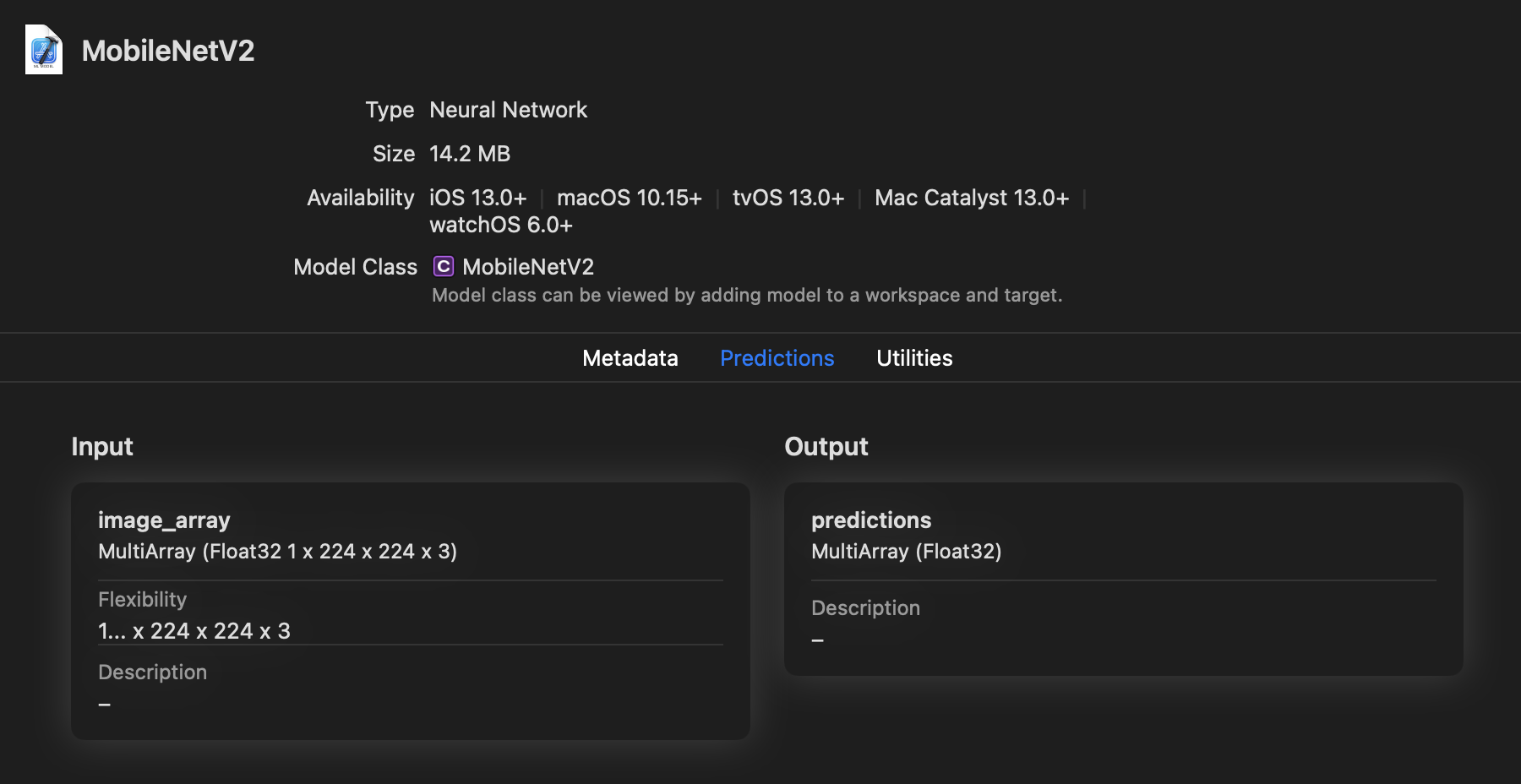
In the above figure, the input is called image_array and is of type MultiArray(1 x 224 x 224 x 3) of type Float32. You can rename the inputs and outputs using the rename_feature method.
Convert a model with an ImageType
You can use an ImageType to produce a model with image inputs.
In the following example, the input type is specified with the class ct.ImageType (coremltools is imported as ct). The model produced by coremltools has an input of type Image:
import coremltools as ct

# Load MobileNetV2.
import tensorflow as tf
keras_model = tf.keras.applications.MobileNetV2()
input_name = keras_model.input_names[0]

# Convert to Core ML with an ImageType for input.
model = ct.convert(keras_model, inputs=[ct.ImageType()])

# Use PIL to load and resize the image to expected size.
from PIL import Image
example_image = Image.open("daisy.jpg").resize((224, 224))

# Make a prediction using Core ML.
out_dict = model.predict({input_name: example_image})

# Save to disk.
model.save("MobileNetV2.mlmodel")
As shown in the above example, the type of input for an image must be a PIL image to invoke a prediction in Python.
The following figure shows the model viewed in Xcode.
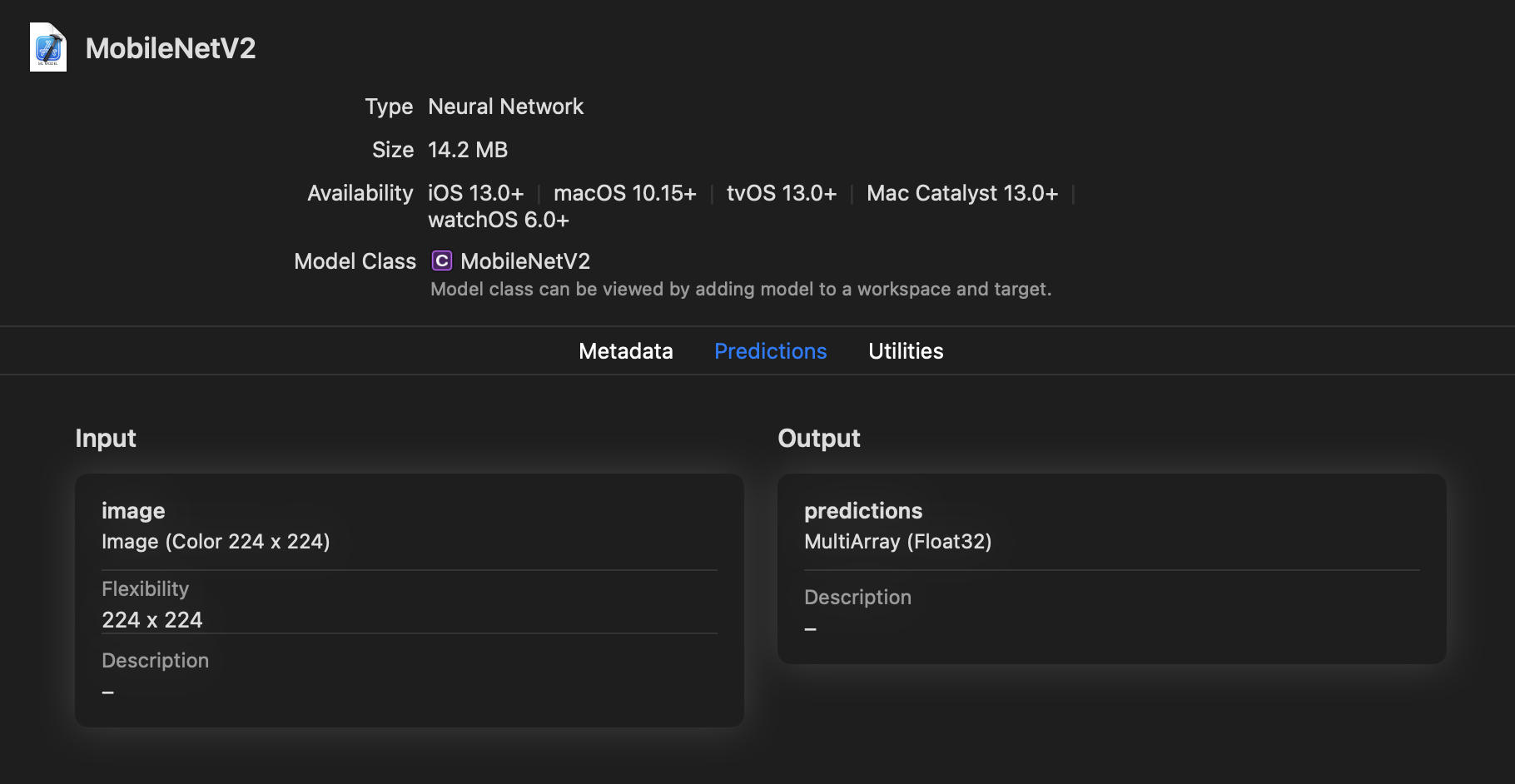
In the above figure, the image input is of type Image with attributes set to (Color, 224 224). You can rename the inputs and outputs using the rename_feature method.
Add image preprocessing options
Image-based models typically require the input image to be preprocessed before using it with the converted model. You may need to apply the same transformations used in the original model.
The Unified Conversion API provides the option to specify preprocessing parameters for image inputs during conversion. These parameters include a global scale and channel-specific biases. The scale and biases are stored in the model and, at runtime, are applied according to the following equation:
y_red_channel = x_red_channel * scale + red_bias
y_green_channel = x_green_channel * scale + green_bias
y_blue_channel = x_blue_channel * scale + blue_bias
If you want to use them, specify them while initializing the ImageType() class:
image_input = ct.ImageType(name="input_1",
                           shape=example_input.shape,
                           scale=scale, bias=bias)
You can then use image_input with the inputs parameter for convert():
# Convert model to coreml with preprocessed image input.
model = ct.convert(
    model,
    inputs=[image_input]
)
Preprocessing for TensorFlow
TensorFlow models differ in how they manage image inputs. You need to examine the model to determine if preprocessing is required for the converted model. Please refer to the training recipe for the model that you are converting, and apply the scale and bias during conversion if required.
For example, the TensorFlow MobileNet model shown in the Quickstart Example expects the input image to be normalized with the interval [-1, 1]. When converting it, use a scale of 1/255 and bias of -1. You can add scale and bias preprocessing parameters during the initialization of an ImageType, such as when using convert():
import coremltools as ct
import tensorflow as tf # TF 1.15

keras_model = tf.keras.applications.MobileNet()

mlmodel = ct.convert(keras_model,
                     inputs=[ct.ImageType(bias=[-1,-1,-1], scale=1/127.5)])
Tip
To learn how to evaluate a Core ML model with image inputs in Python, see Model Prediction.
Preprocessing for Torch
Torch specifies preprocessing with torchvision.transform.Normalize, using the following transformation formula:
output[channel] = (input[channel] - mean [channel]) / std [channel]
For all pre-trained torchvision models, including MobileNetV2, the values are as follows:
- mean is
[0.485, 0.456, 0.406]. - std (standard deviation) is
[0.229, 0.224, 0.225].
The three values correspond to the red ([0.485 and 0.229), green (0.456 and 0.224), and blue (0.406 and 0.225) channels.
In addition, the training recipe for torchvision models assumes that the images have been normalized in the range [0,1] prior to applying the above transform.
Therefore, to start with an image tensor that is in the range [0,255] (such as an image loaded with PIL, or with CVPixelBuffer in the CoreML framework for image inputs), the torchvision preprocessing can be represented as follows:
y_red_channel = (x_red_channel/255.0 - 0.485) / 0.229
y_green_channel = (x_green_channel/255.0 - 0.456) / 0.224
y_blue_channel = (x_blue_channel/255.0 - 0.406) / 0.225
The above formulas can be rewritten as follows:
y_red_channel = x_red_channel / (0.229*255)   - 0.485/(0.229)
y_green_channel = x_green_channel / (0.224*255)   - 0.456/(0.224)
y_blue_channel = x_blue_channel / (0.225*255)   - 0.406/(0.225)
For torchvision models, the following are the equivalent Core ML preprocessing parameters:
scale = 1/(0.226*255.0)
bias = [- 0.485/(0.229) , - 0.456/(0.224), - 0.406/(0.225)]
Core ML uses a global scale value rather than channel-specific values that torchvision uses. Since the three scale values for torchvision models are very close, using one average value works reasonably well:
0.226 = (0.229 + 0.224 + 0.225)/3)
The ImageType input type lets you specify the scale and bias parameters. The scale is applied to the image first, and then the bias is added. Before converting, specify the ImageType as follows:
# Set the image scale and bias for input image preprocessing
scale = 1/(0.226*255.0)
bias = [- 0.485/(0.229) , - 0.456/(0.224), - 0.406/(0.225)]

image_input = ct.ImageType(name="input_1",
                           shape=example_input.shape,
                           scale=scale, bias=bias)
You can then use image_input with convert():
# Convert traced model to coreml
model = ct.convert(
    traced_model,
    inputs=[image_input]
)
Updated about 4 years ago